Inbox Zero Strategy: The Complete Guide to Achieving an Organized and Productive Email Inbox
Introduction
Email remains one of the most important communication tools in both personal and professional life. Whether you are a business owner, freelancer, employee, student, or entrepreneur, email plays a crucial role in daily communication. However, as the number of incoming messages increases, managing email effectively becomes a challenge.
Many people struggle with overloaded inboxes containing hundreds or even thousands of unread messages. Important emails get buried under newsletters, promotions, notifications, and spam. This email clutter can reduce productivity, increase stress, and make it difficult to focus on high-priority tasks.
This is where the Inbox Zero Strategy comes into play.
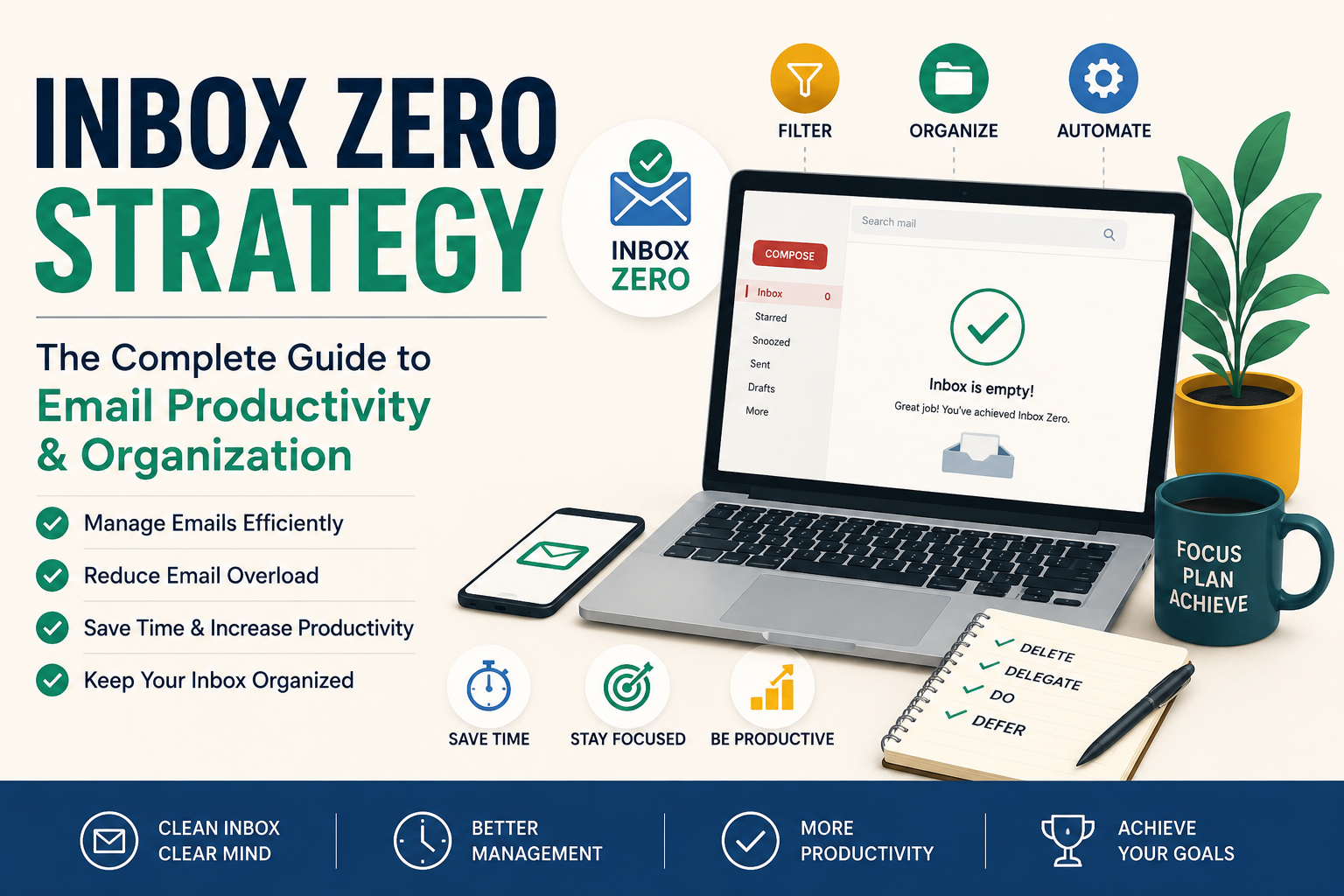
Inbox Zero is a productivity methodology designed to help individuals take control of their email inbox and minimize the time spent managing emails. Contrary to popular belief, Inbox Zero is not simply about having zero emails in your inbox. Instead, it is about reducing the mental burden associated with email management and creating an efficient workflow.
In this comprehensive guide, you will learn everything about Inbox Zero, including its principles, benefits, implementation methods, productivity techniques, and best practices for maintaining an organized inbox.
What Is Inbox Zero?
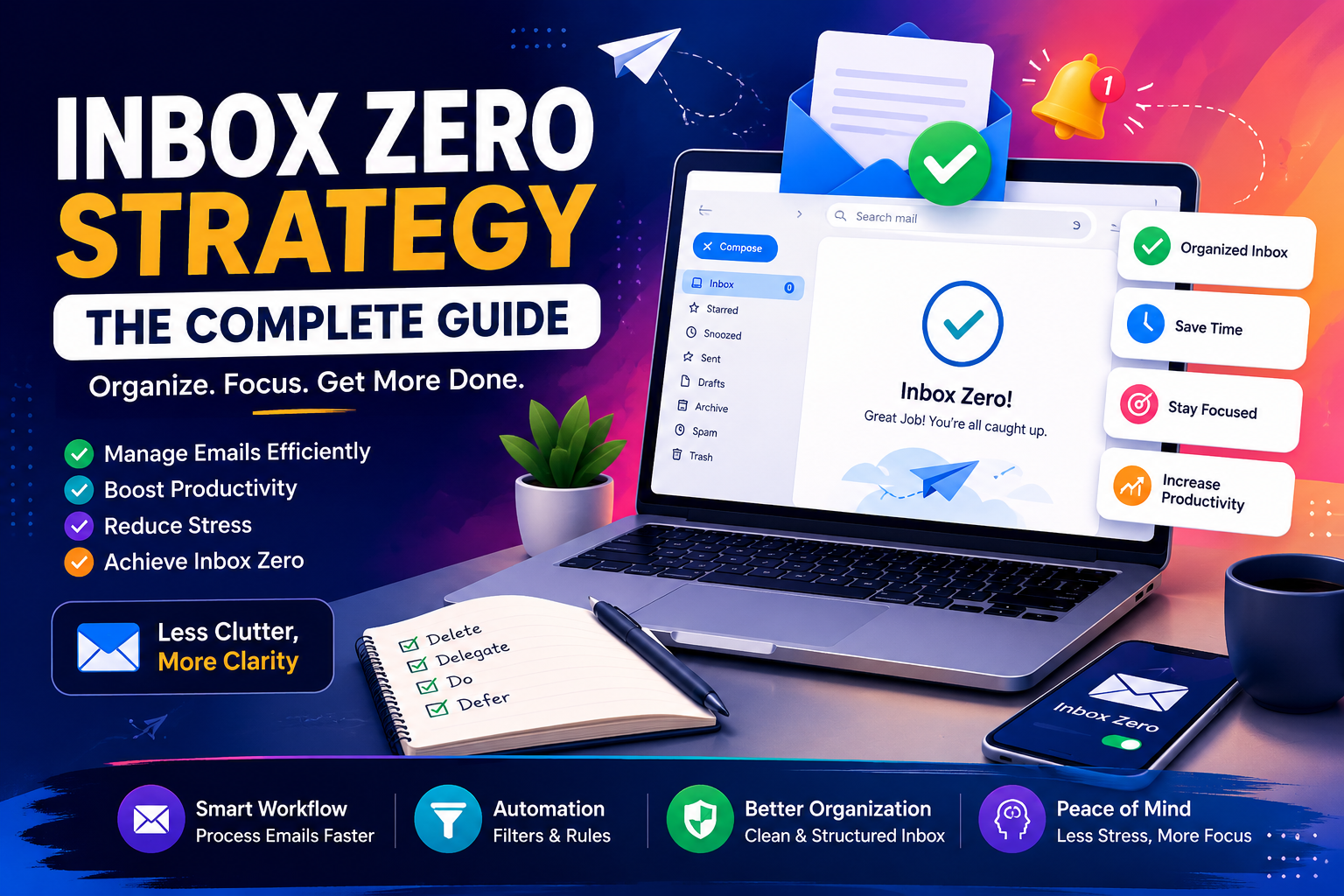
Inbox Zero is an email management approach developed by productivity expert Merlin Mann. The concept focuses on keeping your inbox organized and preventing email from becoming a constant source of distraction.
The primary objective is not necessarily to reach zero emails at all times. Rather, the goal is to ensure that every email has been processed, categorized, delegated, archived, scheduled, or deleted.
Inbox Zero encourages users to treat their inbox as a temporary processing center rather than a permanent storage location.
When implemented correctly, the strategy allows users to spend less time managing emails and more time focusing on meaningful work.
The Meaning Behind Inbox Zero
Many people misunderstand the concept of Inbox Zero. The term “Zero” does not refer only to the number of emails in your inbox. Instead, it represents the amount of mental attention your inbox demands.
A cluttered inbox often creates anxiety because each unread message acts as an unfinished task. Over time, this can lead to decision fatigue and reduced productivity.
Inbox Zero aims to eliminate that psychological burden by ensuring that every email receives an appropriate action.
The result is a cleaner inbox, improved focus, and greater control over communication.
Why Email Overload Is a Modern Productivity Problem
Email has become one of the largest sources of workplace interruptions. Studies consistently show that employees check their inboxes dozens of times per day.
Frequent email checking can lead to:
- Reduced concentration
- Lower productivity
- Increased stress
- Delayed project completion
- Missed important messages
- Poor time management
Every interruption requires the brain to refocus on the original task. This constant switching between work and email consumes valuable mental energy.
The Inbox Zero methodology addresses this issue by creating a structured process for handling emails efficiently.
Core Principles of Inbox Zero
The Inbox Zero framework is built around several key principles that help users manage email more effectively.
Eliminate
Not every email deserves your attention. Promotional messages, spam, and irrelevant notifications should be deleted immediately.
Removing unnecessary emails reduces clutter and allows you to focus on important communication.
Delegate
If an email requires action from someone else, assign the task to the appropriate person.
Delegation prevents unnecessary workload accumulation and improves team efficiency.
Respond
Some emails require quick responses. If a reply can be completed within a few minutes, it is often best to handle it immediately.
Quick responses prevent emails from accumulating.
Defer
Certain emails require more time or attention. Instead of leaving them in your inbox indefinitely, schedule them for later action.
Using task management systems can help track deferred emails effectively.
Archive
Once an email has been processed, archive it rather than keeping it in the inbox.
Archiving preserves information while maintaining a clean workspace.
Benefits of Using the Inbox Zero Strategy
Implementing Inbox Zero provides numerous advantages for both individuals and organizations.
Increased Productivity
A clean inbox reduces distractions and allows users to focus on important tasks.
Employees often spend less time searching for emails and more time completing meaningful work.
Reduced Stress
Email overload can create a constant sense of pressure. Inbox Zero reduces anxiety by ensuring that messages are processed systematically.
Better Organization
Emails become easier to locate when they are properly categorized and archived.
Improved Decision-Making
An organized inbox allows users to prioritize tasks more effectively.
Enhanced Professionalism
Responding promptly and managing communication efficiently creates a positive professional image.
Common Misconceptions About Inbox Zero
Many people avoid Inbox Zero because they misunderstand its purpose.
One common misconception is that Inbox Zero requires checking email constantly. In reality, the strategy encourages scheduled email processing rather than continuous monitoring.
Another misconception is that achieving Inbox Zero requires deleting all emails. The methodology actually emphasizes organization and proper email handling rather than indiscriminate deletion.
Some users also believe Inbox Zero is only suitable for executives or business professionals. However, students, freelancers, entrepreneurs, and everyday users can all benefit from its principles.
Who Should Use Inbox Zero?
Inbox Zero can be beneficial for anyone who relies on email communication.
This includes:
- Business owners
- Entrepreneurs
- Freelancers
- Remote workers
- Project managers
- Students
- Marketing professionals
- Customer support teams
- Corporate employees
- Consultants
Regardless of profession, anyone experiencing email overload can benefit from adopting Inbox Zero principles.
Signs You Need an Inbox Zero System
You may need Inbox Zero if:
- Your inbox contains hundreds of unread emails.
- You frequently miss important messages.
- Email management feels overwhelming.
- You spend excessive time searching for emails.
- Your inbox serves as a task management system.
- Email notifications constantly interrupt your workflow.
Recognizing these signs is the first step toward improving email productivity.
Step-by-Step Implementation of Inbox Zero for Maximum Productivity
In Part 1, we explored what Inbox Zero is, why it matters, and how it can help reduce email-related stress and improve productivity. Now it is time to put the concept into practice. Understanding Inbox Zero is one thing, but implementing it effectively requires a structured approach. This section will walk you through the exact process of transforming a cluttered inbox into an organized productivity system.
Understanding Your Current Email Habits
Before implementing Inbox Zero, you need to evaluate your current email management habits. Many people check their email dozens of times per day without realizing how much time they are spending. Others use their inbox as a to-do list, leaving important emails unread as reminders for future tasks.
Start by observing how often you check email, how many unread messages are currently in your inbox, and how much time you spend processing messages daily. Understanding your existing behavior helps identify the areas that need improvement.
Many users discover that email interruptions consume far more time than they initially expected. Once you become aware of these habits, you can begin making intentional changes that support the Inbox Zero methodology.
Setting Clear Goals for Your Inbox
One of the biggest mistakes people make is attempting to reach Inbox Zero without establishing clear objectives. The goal is not merely to have an empty inbox. Instead, the objective is to ensure that every email is processed appropriately.
Ask yourself questions such as:
- How quickly should important emails be answered?
- How many times per day should email be checked?
- What categories of email require immediate attention?
- Which emails can be archived or deleted automatically?
Establishing clear guidelines creates consistency and makes email management significantly easier.
Creating an Effective Folder Structure
An organized folder structure is one of the foundations of Inbox Zero. Without proper organization, emails quickly become difficult to find.
Instead of creating dozens of complicated folders, focus on simplicity. A small number of well-defined folders is usually more effective than a large, confusing system.
Your folders should reflect actions rather than topics whenever possible. This approach allows you to quickly determine what needs attention and what has already been processed.
Essential Folders for Inbox Zero
Action Required
This folder contains emails that require your direct attention. Any message that needs work, research, or a detailed response can be moved here.
By separating actionable emails from your inbox, you create a dedicated workspace for pending tasks.
Waiting for Response
Sometimes you send an email and must wait for someone else to respond before proceeding. These emails should be moved to a “Waiting for Response” folder.
This prevents unnecessary follow-ups and makes it easy to track ongoing conversations.
Read Later
Not every email needs immediate attention. Newsletters, industry updates, blog subscriptions, and educational content can be stored in a “Read Later” folder.
This prevents non-urgent content from distracting you during work hours.
Reference
Some emails contain important information that may be needed in the future but require no further action.
Examples include:
- Receipts
- Travel confirmations
- Contracts
- Policies
- Purchase records
A dedicated reference folder keeps these messages accessible without cluttering the inbox.
Archive
The archive serves as long-term storage for processed emails. Once an email has been handled, it should be archived rather than left sitting in the inbox.
Archiving keeps your inbox clean while preserving valuable information.
The Four D Method
A core component of Inbox Zero is the Four D Method. Every email should fall into one of four categories.
Delete
Many emails do not require any action whatsoever. Promotional messages, spam, notifications, and irrelevant content should be deleted immediately.
Deleting unnecessary emails reduces clutter and allows important messages to stand out.
Whenever you open an email, ask yourself whether it provides value. If not, remove it.
Delegate
If someone else is better suited to handle a task, delegate it.
Delegation is particularly valuable in business environments where team members have specialized responsibilities.
Forward the email to the appropriate person and move the original message into your tracking folder if follow-up is required.
Do
If an email can be completed quickly, handle it immediately.
This concept is closely connected to the famous Two-Minute Rule developed by productivity expert David Allen.
Simple responses often take less time to complete than to organize and revisit later.
Defer
Some tasks require significant time or attention.
Rather than leaving these emails in your inbox, move them into an action folder or task management system.
Scheduling work prevents important tasks from being forgotten.
The Two-Minute Rule
One of the most powerful productivity techniques within Inbox Zero is the Two-Minute Rule.
The principle is simple:
If responding to an email will take less than two minutes, do it immediately.
This prevents small tasks from accumulating and creating unnecessary backlog.
Examples include:
- Confirming appointments
- Sending quick updates
- Approving requests
- Answering simple questions
Over time, this habit significantly reduces inbox volume.
Processing Emails in Batches
Many people keep their inbox open all day, constantly responding to new messages. While this may seem productive, it often reduces efficiency.
Inbox Zero encourages batch processing.
Instead of checking email continuously, schedule specific times during the day for email management.
For example:
- Morning session
- Midday session
- Afternoon session
Batch processing reduces interruptions and allows deeper focus on important work.
Managing High-Priority Emails
Not all emails are equally important.
High-priority emails typically involve:
- Clients
- Managers
- Business opportunities
- Deadlines
- Financial matters
These messages should be identified and addressed quickly.
Using labels, stars, flags, or priority categories helps ensure they receive immediate attention.
Managing Low-Priority Emails
Many emails do not require immediate action.
Examples include:
- Newsletters
- Marketing emails
- Product updates
- Social notifications
Separating low-priority emails from critical communications prevents unnecessary distractions.
Many users create automatic filters that move these emails directly into designated folders.
Using Labels and Categories
Labels provide an additional layer of organization.
Instead of relying solely on folders, labels allow multiple categories to be applied to a single email.
Common labels include:
- Urgent
- Client
- Finance
- Personal
- Follow-Up
- Projects
Proper labeling makes searching and organizing emails much easier.
Building a Daily Inbox Zero Routine
Consistency is the key to maintaining Inbox Zero.
A typical daily workflow may include:
Morning Session
Review important overnight emails and handle urgent matters.
Midday Session
Process new messages and complete quick responses.
Afternoon Session
Clear remaining actionable emails and prepare for the next day.
This structured routine prevents inbox buildup and maintains organization.
Weekly Inbox Maintenance
Even with strong daily habits, a weekly review remains essential.
During your weekly review:
- Archive completed conversations.
- Delete unnecessary emails.
- Review waiting-for-response folders.
- Update filters and rules.
- Organize reference materials.
This maintenance process ensures your system remains effective over time.
Reducing Email Distractions
Constant notifications are one of the biggest obstacles to Inbox Zero.
Every notification interrupts concentration and creates context switching.
Consider:
- Disabling non-essential notifications.
- Turning off email pop-ups.
- Checking email only during scheduled sessions.
- Using focus modes during deep work.
Reducing interruptions can dramatically improve productivity.
Email Response Best Practices
Efficient communication is an important part of Inbox Zero.
When responding to emails:
- Keep messages concise.
- Be clear and direct.
- Avoid unnecessary replies.
- Include actionable information.
- Use descriptive subject lines.
Effective communication reduces follow-up emails and saves time for everyone involved.
Common Inbox Zero Mistakes
Many users fail to maintain Inbox Zero because of avoidable mistakes.
Common examples include:
- Using the inbox as a task manager.
- Creating too many folders.
- Checking email constantly.
- Ignoring automation tools.
- Failing to unsubscribe from unwanted newsletters.
- Leaving emails unread indefinitely.
Recognizing these mistakes helps maintain long-term success.
Real-World Example of Inbox Zero
Imagine a freelancer receiving 100 emails per day.
Without a system, important client messages become buried under promotional content and notifications.
By applying Inbox Zero principles, the freelancer can:
- Delete irrelevant emails immediately.
- Respond to quick requests.
- Schedule larger tasks.
- Archive completed conversations.
- Use folders and labels for organization.
The result is a cleaner inbox, faster response times, and improved productivity.
Advanced Inbox Zero Techniques, Automation Tools, Gmail & Outlook Setup, and Long-Term Success
In Part 1, we explored the fundamentals of Inbox Zero and why it is one of the most effective email productivity systems available today. In Part 2, we discussed how to implement Inbox Zero using folders, labels, workflows, and daily routines. Now, in the final section of this guide, we will dive deeper into advanced strategies, email automation, Gmail and Outlook optimization, productivity tools, and expert techniques that help maintain Inbox Zero over the long term.
Achieving Inbox Zero once is relatively easy. Maintaining it consistently requires systems, discipline, and smart use of technology. Fortunately, modern email platforms provide powerful features that can automate many repetitive tasks and significantly reduce the amount of manual email management required.
Gmail Setup for Inbox Zero
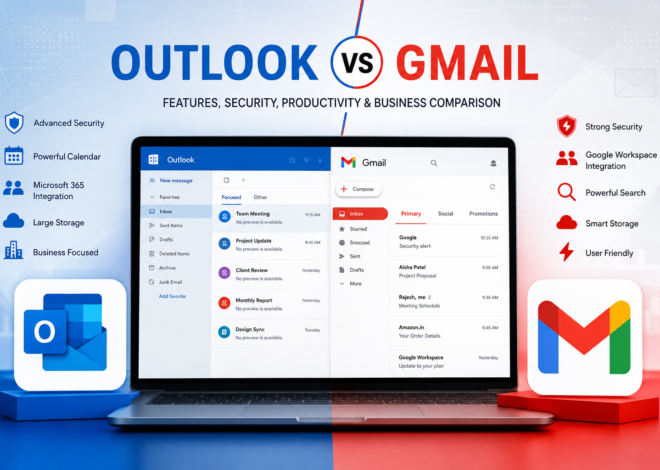
Gmail is one of the most powerful email platforms available today. Its built-in productivity features make it ideal for implementing Inbox Zero.
Many users only take advantage of a small percentage of Gmail’s capabilities. Learning how to use Gmail efficiently can dramatically reduce email overload.
Using Gmail Labels Effectively
Unlike traditional folders, Gmail uses labels. Labels allow a single email to belong to multiple categories simultaneously.
For example, one email can be labeled:
- Client
- Urgent
- Project A
This flexibility makes organization much easier than using traditional folder systems.
Recommended Gmail labels include:
- Action Required
- Waiting for Response
- Clients
- Finance
- Personal
- Read Later
- Archive
Keeping labels simple prevents unnecessary complexity.
Gmail Filters for Automation
Filters are one of the most valuable Gmail features for Inbox Zero users.
Filters automatically organize incoming emails based on rules you create.
For example:
- Newsletters can be sent directly to Read Later.
- Receipts can be sent to Finance.
- Team updates can be assigned project labels.
- Marketing emails can skip the inbox entirely.
Once filters are configured properly, much of your inbox organization happens automatically.
This reduces manual sorting and saves significant time.
Gmail Tabs and Categories
Gmail automatically separates emails into categories such as:
- Primary
- Promotions
- Social
- Updates
- Forums
These tabs help reduce inbox clutter by separating important communication from less urgent content.
Most Inbox Zero users focus primarily on the Primary tab and review the others at scheduled intervals.
This approach minimizes distractions while ensuring that important messages receive immediate attention.
Gmail Archive Function
Many users hesitate to archive emails because they fear losing information.
However, Gmail’s search functionality makes archived emails easy to find.
Instead of keeping completed emails in your inbox, archive them immediately after processing.
This keeps your inbox clean without deleting valuable information.
Archiving is one of the simplest habits that supports long-term Inbox Zero success.
Gmail Search Operators
Searching manually through thousands of emails can waste time.
Gmail offers advanced search operators that make finding emails much faster.
Examples include:
from:
to:
subject:
has:attachment
older_than:
newer_than:
These search tools allow users to locate specific messages within seconds.
Mastering Gmail search significantly improves productivity.
Outlook Setup for Inbox Zero
Microsoft Outlook is widely used in corporate environments and offers numerous features that support Inbox Zero.
When configured properly, Outlook can automate large portions of email management.
Outlook Rules
Rules are Outlook’s automation engine.
Rules can:
- Move emails automatically
- Assign categories
- Flag messages
- Forward emails
- Delete unwanted messages
For example, invoices can automatically move into a finance folder while newsletters bypass the inbox entirely.
Well-designed rules dramatically reduce inbox clutter.
Outlook Categories
Categories function similarly to Gmail labels.
Users can assign categories such as:
- High Priority
- Client Work
- Internal Communication
- Follow-Up
- Personal
Color-coded categories make it easier to identify important emails at a glance.
This improves organization and response speed.
Outlook Quick Steps
Quick Steps allow users to perform multiple actions with a single click.
Examples include:
- Move and archive emails
- Categorize and forward messages
- Flag emails and create tasks
These shortcuts save considerable time when processing large numbers of emails.
Focused Inbox
Outlook’s Focused Inbox automatically separates important emails from less important ones.
The Focused tab contains priority communications.
The Other tab stores newsletters, notifications, and lower-priority messages.
This feature reduces distractions and helps users concentrate on important work.
The Power of Email Automation
Automation is one of the biggest productivity advantages available to modern email users.
Without automation, Inbox Zero often becomes difficult to maintain.
Automation reduces repetitive work and ensures emails are organized consistently.
Automating Newsletters
Newsletters often account for a large percentage of inbox volume.
Instead of reviewing each newsletter individually, create filters that move them into a dedicated folder.
You can review them later during scheduled reading sessions.
This prevents newsletters from interfering with daily work.
Automating Receipts and Financial Records
Online purchases generate numerous receipts and transaction confirmations.
Creating automated finance folders helps organize these records.
This is particularly useful during tax preparation and expense tracking.
Well-organized financial emails save hours of administrative work.
Automating Notifications
Many notifications provide information but require no action.
Examples include:
- Social media alerts
- App updates
- Software notifications
- Website activity reports
These messages can be routed automatically into separate folders.
Reducing notification clutter makes the inbox more manageable.
Best Tools for Inbox Zero
Several tools can help automate email management and improve productivity.
Clean Email
Clean Email helps organize large inboxes by grouping similar messages together.
Users can quickly archive, move, or delete thousands of emails.
This is especially useful when starting Inbox Zero with an overloaded inbox.
SaneBox
SaneBox uses artificial intelligence to identify important emails.
Less important messages are automatically moved into separate folders.
This allows users to focus on high-priority communication.
Mailbird
Mailbird combines multiple email accounts into a single interface.
Its productivity features help users manage communications more efficiently.
Spark Mail
Spark offers smart inbox functionality and collaborative email tools.
Many professionals use Spark to streamline communication workflows.
Superhuman
Superhuman is a premium email application focused on speed and efficiency.
It provides advanced shortcuts and productivity features designed for heavy email users.
Advanced Inbox Zero Strategies
Once the basics are mastered, advanced techniques can further improve results.
The One-Touch Rule
The One-Touch Rule states that every email should be handled the first time it is opened.
Users should avoid repeatedly reading the same email without taking action.
When opening a message:
- Delete it
- Respond to it
- Delegate it
- Schedule it
- Archive it
This habit dramatically reduces inbox backlog.
Email Triage
Email triage involves quickly sorting messages based on importance.
Just as hospitals prioritize patients, Inbox Zero users prioritize emails.
High-priority messages receive immediate attention while lower-priority items are scheduled for later.
This approach improves efficiency during busy periods.
Time Blocking for Email
Instead of checking email continuously, allocate specific periods for email management.
For example:
- 9:00 AM
- 1:00 PM
- 4:00 PM
Outside these windows, keep email closed.
Time blocking reduces distractions and improves concentration.
Managing Multiple Email Accounts
Many professionals manage several email addresses simultaneously.
Examples include:
- Personal email
- Business email
- Freelance email
- Support email
Inbox Zero principles become even more important when multiple accounts are involved.
Centralized email applications can simplify management and reduce complexity.
Measuring Inbox Zero Success
Tracking progress helps maintain motivation and identify opportunities for improvement.
Useful metrics include:
- Number of unread emails
- Average response time
- Daily email processing time
- Weekly inbox size
- Archived emails per month
Monitoring these metrics reveals how effectively your system is working.
Common Challenges When Maintaining Inbox Zero
Even experienced users encounter challenges.
Common obstacles include:
- High email volume
- Poor delegation
- Lack of automation
- Excessive subscriptions
- Frequent interruptions
Addressing these challenges proactively prevents inbox clutter from returning.
Expert Tips for Long-Term Inbox Zero Success
The most successful Inbox Zero practitioners share several common habits.
Unsubscribe Aggressively
If a newsletter no longer provides value, unsubscribe immediately.
Archive More Often
Many emails do not need to remain visible after processing.
Schedule Email Sessions
Avoid checking email constantly throughout the day.
Use Automation Wherever Possible
Automation reduces manual effort and improves consistency.
Review Your System Regularly
Inbox Zero is not a one-time project. It is an ongoing process that evolves with your needs.
Frequently Asked Questions (FAQ)
Does Inbox Zero Mean Having No Emails?
Not necessarily. Inbox Zero means every email has been processed appropriately.
How Often Should I Check Email?
Most productivity experts recommend checking email two to four times daily rather than continuously.
Is Inbox Zero Suitable for Businesses?
Yes. Many businesses use Inbox Zero principles to improve communication efficiency and reduce employee stress.
Can Automation Replace Manual Email Management?
Automation helps significantly, but important emails still require human decision-making.
How Long Does It Take to Reach Inbox Zero?
The answer depends on inbox size. Some users achieve it within hours, while others may need several days to process large backlogs.
Conclusion
Inbox Zero is more than just an email-cleaning technique. It is a productivity framework that helps individuals reduce distractions, improve organization, and regain control of their digital communication.
By processing emails systematically rather than allowing them to accumulate, users can reduce stress, save time, and focus on more valuable work.
In Part 2, we will explore the step-by-step implementation process for Inbox Zero, including folder structures, email categorization methods, automation rules, and practical daily workflows used by productivity experts.